Code Contracts forthcoming in Visual Studio 2010 and .NET 4.0


I am really excited that Code Contracts are etched in to be added to the Base Class Library in .NET 4.0. This abundant excitation is genuine, so-much-so I got up at an ungodly hour this morning, planning, scheming and envisaging getting my hands on the new Library.

Code Contracts allow you to express preconditions, postconditions and object invariants in your code for runtime checking, static analysis, and documentation. You may be aware of background compilation that was added to the C# compiler in Visual Studio 2008 SP1. This is a real advance for static type languages like C# and Visual Basic, because you can start to be explicit about how your code will behave, as it is written, and errors caught even before you compile the program.

Presently, imperative programming languages are ill equipped to deal with the issue of concurrency, and the many core shift in personal computers. One of the chief obstacles in designing parallel code, is the issue of side effects. Contracts don’t offer the benefits of functional programming per se, but they do make your code more easier to predict, which is going to be a key tool in development going forward, as I don’t see all the imperative programmers in the world, and billions of lines of imperative code suddenly being converted into functional code.

The best way to demonstrate this, is through an example. Before that though, feel free to download the Code Contracts library from Microsoft Research. Presently, I am using the academic license which works with Visual Studio Professional, if you do choose to use the commercial license, you will need Visual Studio 2008 Team System. You also want to download the documentation from here, and keep an eye out for developments at the BCL Team blog.

Note: This tutorial is in both C# and Visual Basic

Common Problem

I have a simple class, that demonstrates very well (however simple it might be) what happens in real world development, pretty much on a daily basis. I am creating a class called Rational (go here if you don’t know what a rational number is) , instantiating it, and passing in a couple of values. What you you think happens when I hit F5 to run the program?

Visual Basic

Module Module1

    ‘ Simple class to represent rational numbers

    Public Class Rational

        Private numerator As Integer

        Private denominator As Integer


        Public Sub New(ByVal numerator As Integer, ByVal denominator As Integer)

            Me.numerator = numerator

            Me.denominator = denominator

        End Sub


        ‘ Method returns the closest integer by truncation

        Public Function ToInt() As Integer

            Return Me.numerator / Me.denominator

        End Function

    End Class


    Sub Main()

        Dim rational As New Rational(3, 0)

        Console.WriteLine(rational.ToInt())

    End Sub


End Module

C#

using System;

using System.Diagnostics.Contracts;


namespace CodeContractsDemo

{

   // Simple class to represent rational numbers

    public class Rational

    {

        int numerator;

        int denominator;


        public Rational(int numerator, int denominator)

        {

            this.numerator = numerator;

            this.denominator = denominator;

        }


        // Method returns the closest integer by truncation

        public int ToInt()

        {

            return this.numerator / this.denominator;

        }


    }

    class Program

    {

        static void Main(string[] args)

        {

            Rational rational = new Rational(3,0);

            Console.WriteLine(rational.ToInt());


        }

    }

}


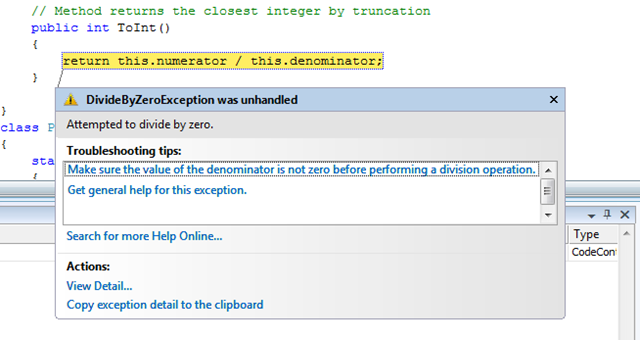
Well you guessed it!

Visual Basic Error

OverflowException


C# Error

DivideByZeroException

This is such a frequent programming mistake, whereby parameters are added that end up causing problems further down the line. Who knows how long it has been since the rational class was first created, and the operation of passing in the zero denominator?

Note: When you installed Code Contracts from Devlabs, the necessary .dll was added to your machine. In C# right click the references node in Solution Explorer and go to add a reference (In Visual Basic double click MyProject in Solution Explorer and select the References tab on the left and select add) to Microsoft.Contracts Library. This will be included in MSCORLIB in .NET 4.0.

ContractsLibrary

You should now find that you can include the System.Diagnostics.Contracts namespace to the top of your class

Visual Basic

Imports System.Diagnostics.Contracts

C#

using System.Diagnostics.Contracts;

Code Contracts

Code Contracts are designed to preclude such eventualities from ever occurring in the first place, and to prevent them really early on, without the need to run the program first. This in some ways illustrates the limits of background compilation, which itself is not a limitation, but the point of inflexion whereby a developer starts to create an algorithm. The background compiler cannot deduce what a developer wants to do beforehand, if it could, we’d all be out of a job.

I need a way to disallow the client from ever passing in a zero denominator. Typically, today, I would write some parameter validation code in the constructor, that throws an exception.

Add the following code to the constructor of the class above (I have decided I want just positive numbers now)

Visual Basic

     Public Sub New(ByVal numerator As Integer, ByVal denominator As Integer)

            Contract.Requires(0 < denominator)

            Me.numerator = numerator

            Me.denominator = denominator

        End Sub

C#

      public Rational(int numerator, int denominator)

        {

            Contract.Requires(0 < denominator);

            this.numerator = numerator;

            this.denominator = denominator;

        }

When you installed the contracts library, a new Code Contracts tab was added to your project. In C# double click the Properties node in Solution Explorer in Visual Basic, double click MyProject in Solution Explorer
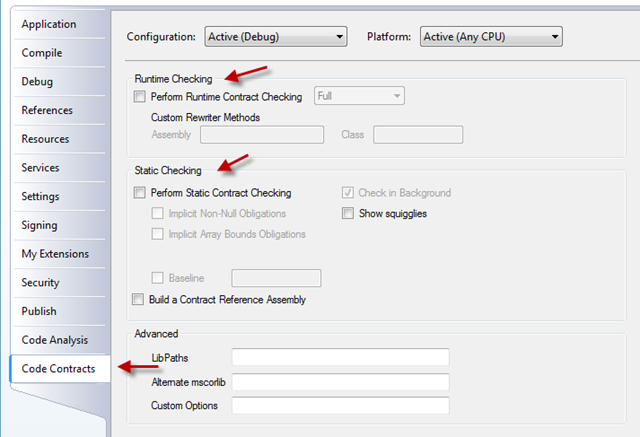
VisualStudio

Place a check in the “Perform Runtime Contract Checking” checkbox, return to the project and hit F5 to run the project.

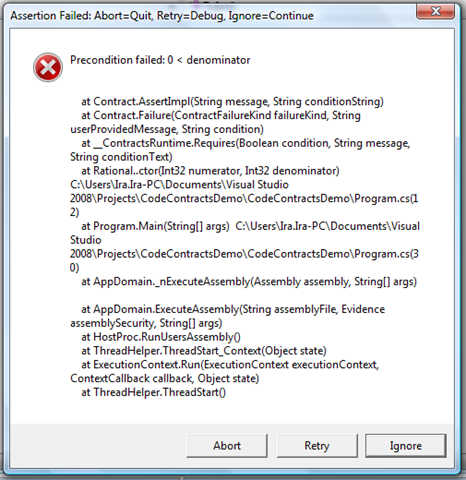
You should find you have the following (Note: the failure is a Precondition)
PreCondition

This Debug.Assert is called upon instantiation of the class, and does not occur further down the line when ToInt() is called.

Return to the Code Contracts tab, and this time check “Perform Static Contract Checking” and build

StaticAsWell

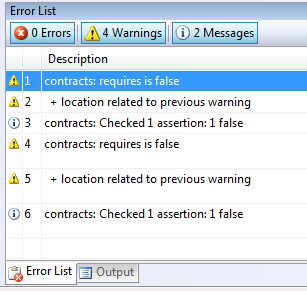
You should now find that you have warnings in your error list

Visual Basic

VBError

C#

CSharpError

You don’t need to execute your code, the static checker runs a build time which is pretty smart. It is a best practice to always enable runtime checking as well, as the static checker does not always catch every single error, but the real power in this, is that every precondition in the solution is checked.

Change the zero parameter in the constructor thus, and build

Visual Basic

    Sub Main()

        Dim rational As New Rational(3, 4)

        Console.WriteLine(rational.ToInt())

    End Sub

C#

     static void Main(string[] args)

        {

            Rational rational = new Rational(3, 4);

            Console.WriteLine(rational.ToInt());         

        }

It is still possible for a zero denominator to enter the ToInt() method, even though it appears impossible due to the constructor code. One might have another method in this class or have sub types of this class, and there is nothing to prevent this Rational class from getting a zero denominator even though the class was not created with a zero in the first place. The way one protects the class from this occurring is through an object invariant method.

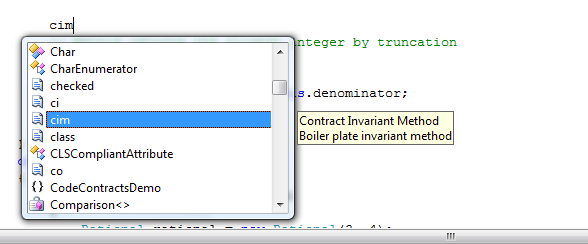
In the code editor type “cim” and then tab tab – just like adding an event handler (no code snippets yet in the VB editor)
ContractInvariantMethod 

Visual Basic

     <ContractInvariantMethod()> _

        Protected Sub ObjectInvariant()

            Contract.Invariant(False)

        End Sub

C#

      [ContractInvariantMethod]

        protected void ObjectInvariant()

        {

            Contract.Invariant(false);

        }


You can then set the parameter in the method

Visual Basic

        <ContractInvariantMethod()> _

        Protected Sub ObjectInvariant()

            Contract.Invariant(Me.denominator > 0)

        End Sub

C#

   [ContractInvariantMethod]

        protected void ObjectInvariant()

        {

            Contract.Invariant(this.denominator > 0);

        }

It is now impossible for the denominator in the class to ever be zero. One also want to be able to inform clients of this Rational class what the ToInt() returns, this is the postcondition.

Visual Basic

        ‘ Method returns the closest integer by truncation

        Public Function ToInt() As Integer

            Contract.Ensures(Contract.Result(Of Integer)() >= 0)

            Return Me.numerator / Me.denominator

        End Function

C#

        // Method returns the closest integer by truncation

        public int ToInt()

        {

            Contract.Ensures(Contract.Result<int>() >= 0);

            return this.numerator / this.denominator;

        }

The thing to notice here is that the Contract.Ensures method is declared before the integer is returned, but the compiler (magic) rearranges the code so this code is called after the integer has been returned back. I will now show the completed projects showing preconditions, object invariants and postconditions.

Visual Basic

Imports System.Diagnostics.Contracts


Module Module1

    ‘ Simple class to represent rational numbers

    Public Class Rational

        Private numerator As Integer

        Private denominator As Integer


        Public Sub New(ByVal numerator As Integer, ByVal denominator As Integer)

            Contract.Requires(0 < denominator)

            Contract.Requires(0 <= numerator)

            Me.numerator = numerator

            Me.denominator = denominator

        End Sub


        <ContractInvariantMethod()> _

        Protected Sub ObjectInvariant()

            Contract.Invariant(Me.denominator > 0)

            Contract.Invariant(Me.numerator >= 0)

        End Sub


        ‘ Method returns the closest integer by truncation

        Public Function ToInt() As Integer

            Contract.Ensures(Contract.Result(Of Integer)() >= 0)

            Return Me.numerator / Me.denominator

        End Function


    End Class


    Sub Main()

        Dim rational As New Rational(12, 3)

        Console.WriteLine(rational.ToInt())

    End Sub


End Module

C#

using System;

using System.Diagnostics.Contracts;


namespace CodeContractsDemo

{

   // Simple class to represent rational numbers

    public class Rational

    {

        int numerator;

        int denominator;


        public Rational(int numerator, int denominator)

        {

            Contract.Requires(0 < denominator);

            Contract.Requires(0 <= numerator);


            this.numerator = numerator;

            this.denominator = denominator;

        }


        [ContractInvariantMethod]

        protected void ObjectInvariant()

        {

            Contract.Invariant(this.denominator > 0);

            Contract.Invariant(this.numerator >= 0);

        }


        // Method returns the closest integer by truncation

        public int ToInt()

        {

            Contract.Ensures(Contract.Result<int>() >= 0);

            return this.numerator / this.denominator;

        }


    }

    class Program

    {

        static void Main(string[] args)

        {

            Rational rational = new Rational(12,3);

            Console.WriteLine(rational.ToInt());         

        }

    }

}


I am sure one can be certain that you be seeing a lot more of this type of .NET code in the not too distant future.

Windows Vista (and Windows 7) Bridge for managed developers


To quote the Windows SDK Team

“Many of you don’t know about the Vista Bridge sample library, what can it do or even where you can find it.

Let’s start with the basics; i.e. definitions. Vista Bridge is a sample library that contains managed wrappers for a number of Windows Vista APIs that are not exposed in the .NET Framework. The wrappers include common Open and Save file dialogs and new Vista advanced task dialogs.”

This SDK is very late ( by at least a couple of years) and contains a lot of features managed developers have moaned and moaned about being missing.

Finally, now, in version 1.4, we are nearing something that developers can use in their applications. The new Windows 7 taskbar – in fact all of the Windows 7 API’s – will be included in future versions of the Vista Bridge. If you are looking to develop your managed application targeting the new Windows 7 API’s, then the code is available here.

The great thing is that you can use both Windows Forms and Windows Presentation Foundation, though the samples are mostly WPF.

Libraries

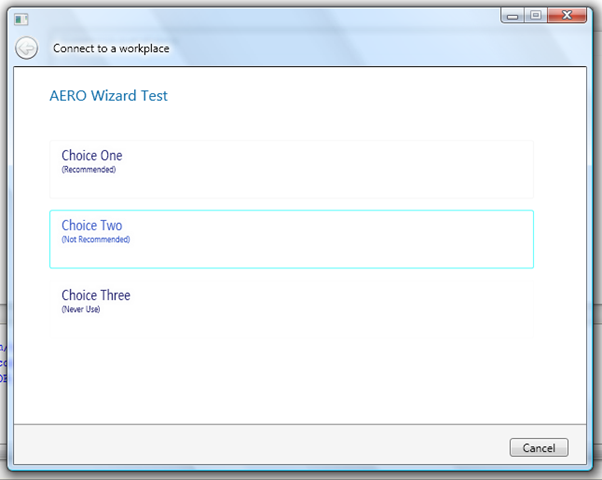
Note: There is a CHM with information on how to use the controls in Windows Forms, and hopefully a fully documented Visual Basic CHM as well. Here are a few screenshots of the controls

Aero Wizard

AeroWizard

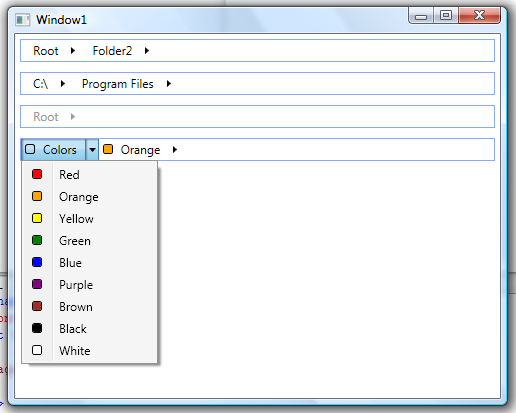
Breadcrumb Control

BreadCrumb

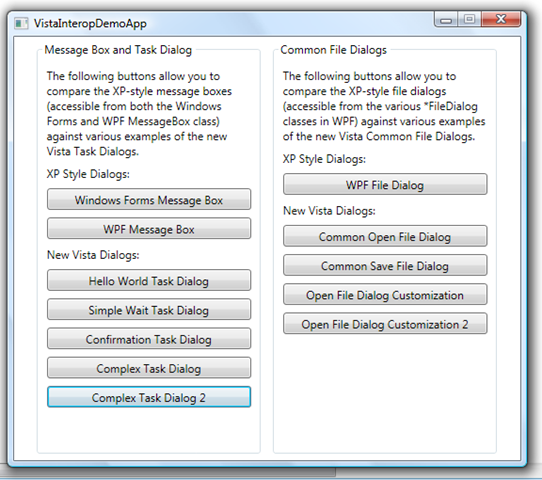
Vista and Windows 7 Interop

VistaInteop

From the Interop samples above you have

ComplexTaskDialog

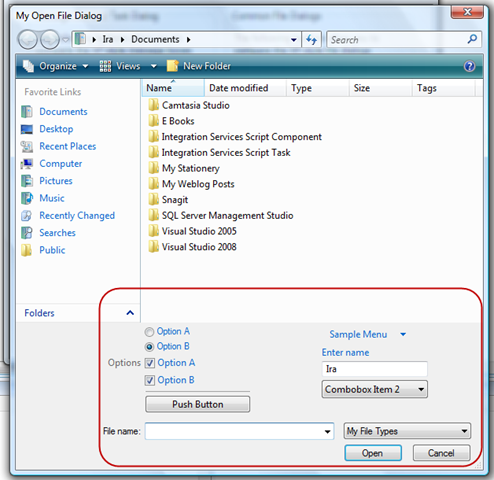
Customised Open File Dialog

OpenFileDialogCustomised

So, all-in-all there are some very useful controls that I hope will be fully released in the Windows 7/Visual Studio 2010 time frame, and will be incorporated into Visual Studio 2010.

If you develop smart client applications that will be targeting Windows 7, then I really do urge you get to know and use the Windows 7 Taskbar API’s. The Windows team have dramatically changed the way that the taskbar is used, with reduced repetition, jump lists and so forth, with the common file dialog being an axis that the Windows 7 Taskbar is built upon.

SQL Compact and The Entity Framework


Linq to SQL Vs Entity Framework

Linq to SQL is not supported using SQL Compact, although it is possible to use Linq to SQL using SQLMetal.exe, I have a post here showing how this can be done. The Entity Framework however, is fully supported in SQL Compact CE.

Personally speaking, if I was to create a large application that is data access heavy (especially if it is multi-user), then I would still opt for ADO.NET datasets and stored procedures. There are quite a few applications that don’t require the the fuss of creating and maintaining stored procedures, and in those cases, I definitely prefer using an Object Relational Mapping tool (ORM).

Linq to SQL Development Terminated

Microsoft announced that they would stop any further development of Linq to SQL. This (as you might guess) was not received at all well in the developer community – just read the comments in the announcement – because this little ORM tool gained phenomenal popularity very quickly, mostly because it was very lightweight though still very powerful.

The Entity Framework has not been received as favourably, with many dissatisfied by the complexity and ultimately the cogency of the object model. For me, however, the Entity Framework is just an ORM tool like Linq to SQL, and contains pretty much all the functionality, so I see no point in not using it, especially since resources are continuing to be poured into it, and the same Linq queries you ran in Linq to SQL are the same you run as Linq to Entities.

Master Details Demo

For this demo (note this demo is in both C# and Visual Basic), I am going to create a simple master/details form that collects data from the Northwind database, make some changes and save those changes. This is very typical for any type of application that would use a compact database.

Create a new .NET 3.5 windows forms project and call it NorthwindTraders.

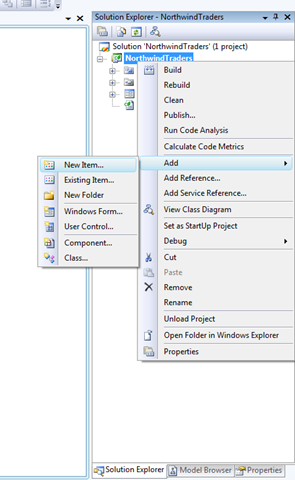
Add a new item to the project

AddNew

Choose the ADO.NET Entity Data Model and name it NorthwindModel and clock add

NorthwindModel

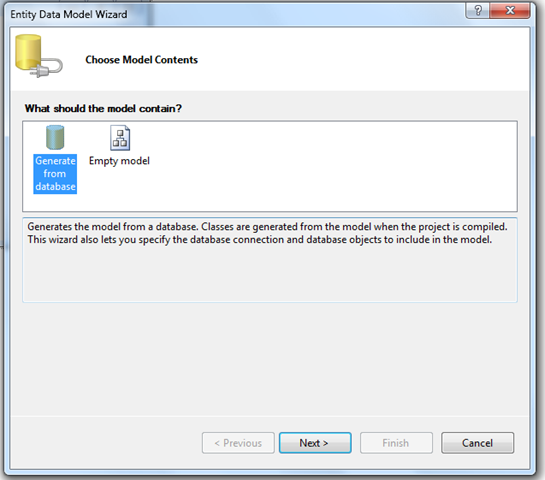
You should now have the Entity Data Model Wizard, choose “Generate From Database” and click “Next”

Wizard

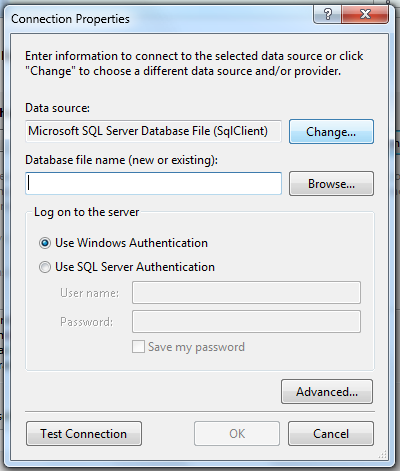
Here you can choose the database type which can be SQL 2008, Express or SQL Compact. Since this demo is about SQL compact, change the datasource by clicking the change button

DataBaseType

And choose SQL Compact and click OK

SQLCompact

When you click “Browse to locate” a database, you should automatically open the Northwind.sdf located at C:Program FilesMicrosoft SQL Server Compact Editionv3.5Samples

BrowseForDB

I never run as administrator when developing in general (on Vista/Wiindows 7) so you will need to move this sample database to a folder where you can access it without running as administrator. I have copied the database to a folder on my C drive, select the database there and click OK.

You should now have the connection string, and set the connection string to NorthwindEntities and click “Next”.

ConnectionString

Choose the “Customers” and “Orders” tables and click “Finish”

Model

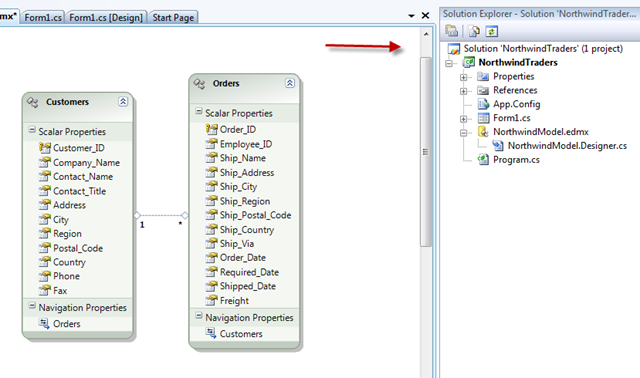
IF you double click the NorthwindModel.edmx in Solution Explorer you should have the ORM in the designer.

ModelInDesigner

Note: The designer has a slight bug in that if the scroll bar is right at the top (see red arrow above), then you cannot see the mappings, to correct this, just move the scrollbar down a little

From the Data menu, add a data source

AddDataSource

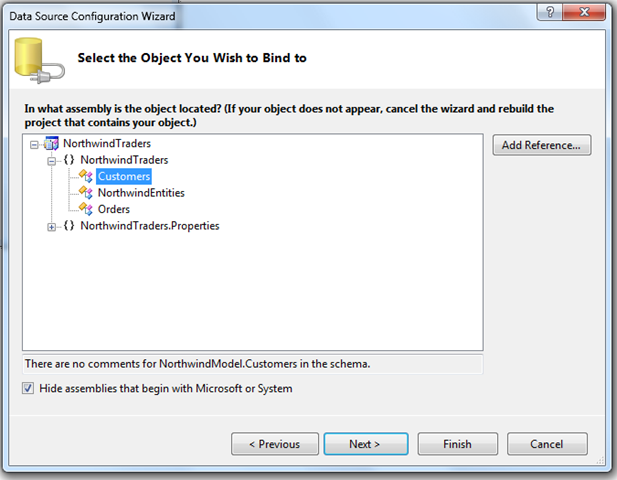
Select “Object” and select “”Next

Customers

Click “Finish” and you should now have the datasource showing

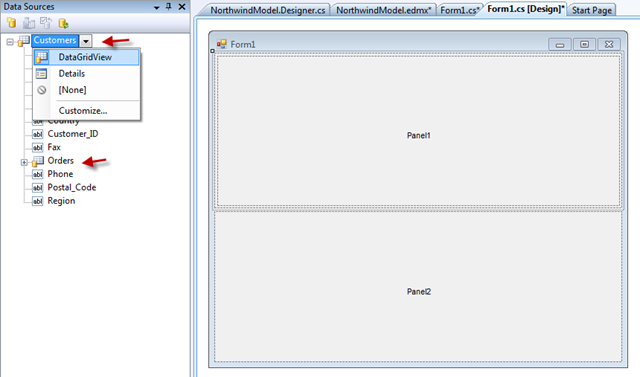
Add a SplitContainer to the form and set the orientation to “horizontal”. Drag a DataGrid from the Customers Node into the first split panel, and do the same with the related orders

MasterDetails

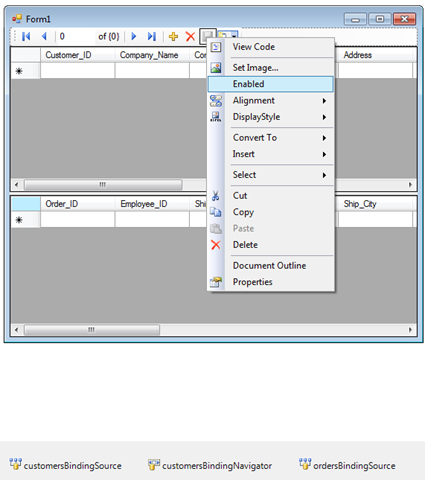
You should now have the two datagrids, the two binding sources and a binding navigator. Set the save button in the navigator to “Enabled”. Double click the form to create a Form_Load event and also double click the save button to create an event handler

Enabled

In the code behind of the form (note Visual Basic code is beneath)

C#

using System;

using System.Collections.Generic;

using System.ComponentModel;

using System.Data;

using System.Drawing;

using System.Linq;

using System.Text;

using System.Windows.Forms;


namespace NorthwindTraders

{

    public partial class Form1 : Form

    {

        NorthwindEntities context;


        public Form1()

        {

            InitializeComponent();

        }

        /// <summary>

        /// When the form loads we instantiate the NorthwindEntities context and perform

        /// a simple Linq query that returns all the customers in London

        /// </summary>

        /// <param name="sender"></param>

        /// <param name="e"></param>

        private void Form1_Load(object sender, EventArgs e)

        {

            context = new NorthwindEntities();


            var customers = from c in context.Customers.Include("Orders")

                            where c.City == "London"

                            select c;


            this.customersBindingSource.DataSource = customers;

        }


        /// <summary>

        /// Save the changes made in both DataGridviews

        /// </summary>

        /// <param name="sender"></param>

        /// <param name="e"></param>

        private void customersBindingNavigatorSaveItem_Click(object sender, EventArgs e)

        {

            this.context.SaveChanges();


        }


    }

}

Visual Basic

Public Class Form1


    Private context As NorthwindEntities


    ”’ <summary>

    ”’ When the form loads we instantiate the NorthwindEntities context and perform

    ”’ a simple Linq query that returns all the customers in London

    ”’ </summary>

    ”’ <param name="sender"></param>

    ”’ <param name="e"></param>

    Private Sub Form1_Load(ByVal sender As System.Object, ByVal e As System.EventArgs) Handles MyBase.Load

        context = New NorthwindEntities()


        Dim customers = From c In context.Customers.Include("Orders") _

            Where c.City = "London" _

            Select c


        Me.CustomersBindingSource.DataSource = customers

    End Sub


    ”’ <summary>

    ”’ Save the changes made in both DataGridviews

    ”’ </summary>

    ”’ <param name="sender"></param>

    ”’ <param name="e"></param>

    Private Sub CustomersBindingNavigatorSaveItem_Click(ByVal sender As System.Object, ByVal e As System.EventArgs) Handles CustomersBindingNavigatorSaveItem.Click

        Me.context.SaveChanges()

    End Sub

End Class

As you can see, it really is quite easy to use the EntityFramework, and pretty much the same functionality in Linq to SQL is available here.

The importance of the Background Worker component


Serious Problem

I recently reviewed a very large enterprise application for one of the biggest retail companies in the country, and was aghast at the lack of multi-threading in the application. I resolved to ensure I post about it, though this subject has been covered numerous times over the years, and there are a few examples interspersed over the internet. New developers or maybe intermediate developers not working in the data access layer of a project may gloss over why this component is so important. You also don’t want to revisit an application in a few years time and have to make multi-threading modifications.

I came to realise the true importance of this component, because as I spoke with staff, and they talked me through the program working, at key stages during the program I would be told that after clicking a button that makes a database call  “the computer is thinking now, so wait for a while” or “when you click this, you cannot do anything”, or “don’t click that option because it will freeze the screen, and you won’t be able to use the computer for half an hour”.

The list of these warnings goes on and on, about using their system. The administration staff/information workers have tasks they have to run several times every day, and typically, they cannot use their system for half and hour or even more at times, because the queries they are running are executing on the UI thread. This quite frankly is an atrocious situation. Pretty much every part of their application that makes database calls, runs on the UI thread.

What ‘beggars belief’ is that this system is used by one of the largest retail companies in the UK, and that there are doubtlessly more retailers that are in the same boat. These retail organisations realised the power of computing many years ago, and their systems were developed at a time when patterns and practices had not been invented, and some very bad coding practices were cultivated. I estimate that this specific company that has triggered this post, is losing at least £100 000 annually in wages and lost productivity, because all their staff spend a third of their day twiddling their thumbs, while their computer screens are frozen because the UI thread is locked up (and this is a conservative estimate).

Demonstration

Seriously, if you develop any application that makes calls to a database you must learn to love and use this component on every form that makes a database call!

Typically you will create an interface that has a loadDataBackgroundWorker (when the form loads) and a saveDataBackgroundWorker (when the form is closed). There really is no excuse not to use this component, which incidentally, is framework agnostic, and is used in the new Silverlight 2 runtime. I know of some people that have run into issues with the dispatcher component in WPF, and they are using this in their WPF applications. In general, writing multithreaded applications is very difficult, the background worker component makes writing multithreaded applications so much easier.

To demonstrate how this works, create a new windows forms application in C# or Visual Basic (you can use the express editions) and drag a progress bar and two buttons onto the form. Name the appropriate button “startButton” and “MessageButton”.

TheForm

In the code behind, handle the events thus (Visual Basic example is beneath)

C#

using System;

using System.ComponentModel;

using System.Windows.Forms;


namespace BackgroundWorkerDemo

{

    public partial class Form1 : Form

    {

        public Form1()

        {

            InitializeComponent();


            this.progressBar1.Minimum = 0;

            this.progressBar1.Maximum = 9;

            this.progressBar1.Value = 0;

        }


        private void messageButton_Click(object sender, EventArgs e)

        {

            MessageBox.Show("Hello World!");

        }


        private void startButton_Click(object sender, EventArgs e)

        {

            for (int i = 1; i < 10; i++)

            {

                this.progressBar1.Value = i;

                System.Threading.Thread.Sleep(1000);

            }

        }

    }

}

Visual Basic

Imports System.ComponentModel


Public Class Form1

    Private Sub Form1_Load(ByVal sender As System.Object, ByVal e As System.EventArgs) Handles MyBase.Load

        Me.progressBar1.Minimum = 0

        Me.progressBar1.Maximum = 9

        Me.progressBar1.Value = 0

    End Sub


    Private Sub messageButton_Click(ByVal sender As System.Object, ByVal e As System.EventArgs) Handles messageButton.Click

        MessageBox.Show("Hello World!")

    End Sub


    Private Sub startButton_Click(ByVal sender As System.Object, ByVal e As System.EventArgs) Handles startButton.Click

        For i As Integer = 1 To 9

            Me.progressBar1.Value = i

            System.Threading.Thread.Sleep(1000)

        Next

    End Sub

End Class

If you run the program, and click on the “show message” button, this shows the message “Hello World!”. If you then click on the start button and try to click the “show message” button you will find that you cannot trigger the message, until the progress bar has completed. Incidentally, System.Threading.Thread.Sleep(1000) just causes the thread the progress bar is running on to pause for a second (1000 milliseconds). If this were not included, the for loop would execute too fast, and you would not see the screen locking up.

This scenario is no different to the problem I have outlined by this major enterprise application. When users of the application click “load orders” or whatever option fetched data from the database, their application is locking the UI thread, and this leads to a very poor user experience, and statements like “the computer is thinking about things”.

Solution

Drag a background worker component onto your form from the toolbox, and set the reports progress property to true

ReportsProgress

Click the events button and handle all 3 events

BackGroundEvents

In the event handlers move the previous code so it looks like this

C#

using System;

using System.Collections.Generic;

using System.ComponentModel;

using System.Data;

using System.Drawing;

using System.Linq;

using System.Text;

using System.Windows.Forms;


namespace BackgroundWorkerDemo

{

    public partial class Form1 : Form

    {

        public Form1()

        {

            InitializeComponent();


            this.progressBar1.Minimum = 0;

            this.progressBar1.Maximum = 9;

            this.progressBar1.Value = 0;

        }


        private void messageButton_Click(object sender, EventArgs e)

        {

            MessageBox.Show("Hello World!");

        }


        private void startButton_Click(object sender, EventArgs e)

        {

            this.backgroundWorker1.RunWorkerAsync();

        }


        private void backgroundWorker1_DoWork(object sender, DoWorkEventArgs e)

        {

            for (int i = 1; i < 10; i++)

            {

                this.backgroundWorker1.ReportProgress(i);

                System.Threading.Thread.Sleep(1000);

            }

        }


        private void backgroundWorker1_ProgressChanged(object sender, ProgressChangedEventArgs e)

        {

            this.progressBar1.Value = (int)e.ProgressPercentage;

        }


        private void backgroundWorker1_RunWorkerCompleted(object sender, RunWorkerCompletedEventArgs e)

        {

            this.progressBar1.Value = 0;

        }

    }

}

Visual Basic

Imports System.ComponentModel


Public Class Form1

    Private Sub Form1_Load(ByVal sender As System.Object, ByVal e As System.EventArgs) Handles MyBase.Load

        Me.progressBar1.Minimum = 0

        Me.progressBar1.Maximum = 9

        Me.progressBar1.Value = 0

    End Sub


    Private Sub messageButton_Click(ByVal sender As System.Object, ByVal e As System.EventArgs) _

    Handles messageButton.Click

        MessageBox.Show("Hello World!")

    End Sub


    Private Sub startButton_Click(ByVal sender As System.Object, ByVal e As System.EventArgs) _

    Handles startButton.Click

        Me.BackgroundWorker1.RunWorkerAsync()

    End Sub


    Private Sub backgroundWorker1_DoWork(ByVal sender As System.Object, ByVal e As DoWorkEventArgs) _

    Handles BackgroundWorker1.DoWork

        For i As Integer = 1 To 9

            Me.BackgroundWorker1.ReportProgress(i)

            System.Threading.Thread.Sleep(1000)

        Next

    End Sub


    Private Sub backgroundWorker1_ProgressChanged(ByVal sender As System.Object, ByVal e As ProgressChangedEventArgs) _

    Handles BackgroundWorker1.ProgressChanged

        Me.progressBar1.Value = CInt(e.ProgressPercentage)

    End Sub


    Private Sub backgroundWorker1_RunWorkerCompleted(ByVal sender As System.Object, ByVal e As RunWorkerCompletedEventArgs) _

    Handles BackgroundWorker1.RunWorkerCompleted

        progressBar1.Value = 0

    End Sub

End Class

When you run the application and click the message button after you click start, the long task (i.e. the work done connecting to your database) is executed on another thread asynchronously. this results in a responsive application that does not lock. The users at the aforementioned enterprise can then click into other options in their application and do other work, while the program processes.

Quick Tip : Ensure that you do not add any code that accesses the UI thread in the DoWork event. You may have a label that says connecting…. in your ToolStripLabel for instance. Make sure this code is where the backgroundWorker.RunWorker.Async() is called, and nowhere else. You can add a message so say “completed” or something similar in the RunWorkerCompleted event as that is on the UI thread.

I really cannot reiterate sufficiently clearly just how important it is to wrap every method in your application that makes a database call in a background worker. Not only  does this improve the efficiency and productivity of employees (users), but they come away with a very positive view of the application, which is not what the users at this company have. When training new staff they end up being on tenterhooks just in case they click on the wrong button, and cause the program to freeze. At busy times, or near the end of the day where work needs to be completed, the last thing you need, is an application that hangs for half an hour or even longer before you can use it again.

Please, please, please, use this component as much as you can in all your data access applications.

Windows 7 TreeView and ListView


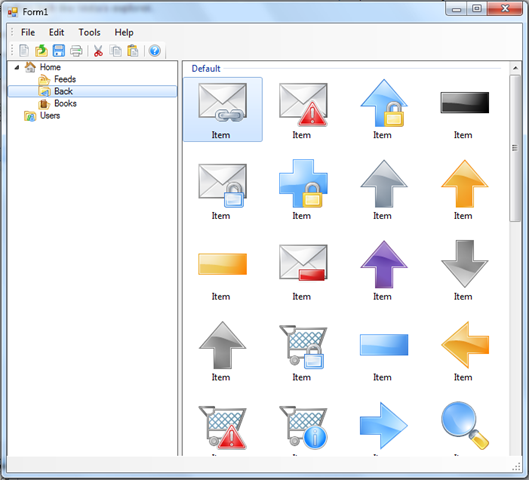
The default Tree and List view controls in windows forms look rather dated. In an earlier post, I demonstrated just how easy it was to change the theme of the TreeView control and ListView controls so they look like Vista’s explorer.

The same code can be used to attain the Windows 7 Tree and List view controls look and feel.

TreeAndList

Here I have a TreeView with an ImageList, and a ListView with an ImageList that has some large images, and am populating it when the form loads. If you would like to go further with the other controls (buttons etc.), there is a very good article on codeproject.com worth checking out.

Visual Basic (c# example beneath)

Imports System.Runtime.InteropServices

Public Class Form1

    Private random As Random


    Public Sub New()

        Me.Font = System.Drawing.SystemFonts.IconTitleFont


        InitializeComponent()


        SetWindowTheme(treeView1.Handle, "explorer", Nothing)

        SetWindowTheme(listView1.Handle, "explorer", Nothing)


        Me.treeView1.HotTracking = True

        Me.treeView1.FullRowSelect = True

    End Sub

    ”’ <summary>

    ”’ Native interop method, be sure to include the  System.Runtime.InteropServices

    ”’ name space

    ”’ </summary>

    ”’ <param name="hWnd"></param>

    ”’ <param name="appName"></param>

    ”’ <param name="partList"></param>

    ”’ <returns></returns>

    <DllImport("uxtheme.dll", CharSet:=CharSet.Unicode, ExactSpelling:=True)> _

    Private Shared Function SetWindowTheme(ByVal hWnd As IntPtr, ByVal appName As String, ByVal partList As String) As Integer

    End Function


    ”’ <summary>

    ”’ Using an image collection in an ImageList component, fill the

    ”’ ListView control with 50 random images when the form loads

    ”’ </summary>

    ”’ <param name="sender"></param>

    ”’ <param name="e"></param>

    Private Sub Form1_Load(ByVal sender As Object, ByVal e As EventArgs) Handles MyBase.Load

        random = New Random()


        Me.treeView1.ExpandAll()

        Me.listView1.LargeImageList = Me.imageList2

        Me.listView1.BeginUpdate()


        For i As Integer = 0 To 49

            Dim item As New ListViewItem()


            item.ImageIndex = random.[Next](0, imageList2.Images.Count)


            Dim name As String = DirectCast(item.Name, String)


            item.Text = "Item " & name


            Me.listView1.Items.Add(item)

        Next


        Me.listView1.EndUpdate()

    End Sub


End Class

C#

using System;

using System.Windows.Forms;

using System.Runtime.InteropServices;


namespace WindowsSevenTreeViewAndListView

{

    public partial class Form1 : Form

    {

        Random random;


        public Form1()

        {

            this.Font = System.Drawing.SystemFonts.IconTitleFont;


            InitializeComponent();


            SetWindowTheme(treeView1.Handle, "explorer", null);

            SetWindowTheme(listView1.Handle, "explorer", null);  


            this.treeView1.HotTracking = true;

            this.treeView1.FullRowSelect = true;

        }

        /// <summary>

        /// Native interop method, be sure to include the  System.Runtime.InteropServices

        /// name space

        /// </summary>

        /// <param name="hWnd"></param>

        /// <param name="appName"></param>

        /// <param name="partList"></param>

        /// <returns></returns>

        [DllImport("uxtheme.dll", CharSet = CharSet.Unicode, ExactSpelling = true)]

        private static extern int SetWindowTheme(IntPtr hWnd, string appName, string partList);


        /// <summary>

        /// Using an image collection in an ImageList component, fill the

        /// ListView control with 50 random images when the form loads

        /// </summary>

        /// <param name="sender"></param>

        /// <param name="e"></param>

        private void Form1_Load(object sender, EventArgs e)

        {

            random = new Random();


            this.treeView1.ExpandAll();

            this.listView1.LargeImageList = this.imageList2;          

            this.listView1.BeginUpdate();


            for (int i = 0; i < 50; i++)

            {

                ListViewItem item = new ListViewItem();


                item.ImageIndex = random.Next(0, imageList2.Images.Count);


                string name = (string)item.Name;


                item.Text = "Item " + name;


                this.listView1.Items.Add(item);

            }


            this.listView1.EndUpdate();

        }

    }

}

Unable to find manifest signing certificate in the certificate store


I have recently upgraded operating systems from Windows Vista to Windows 7 beta 1. When attempting to run a program that complied on Vista, I get the error message; Unable to find manifest signing certificate in the certificate store. [name of the project]

A brief Google search shows this is a common error, but no-one seems to have the error I do, as the suggestion is to edit the .cs.project file and remove the manifest signing section which I presently do not have.

The cause of this error is click once. Whenever you use click once, it creates a temporary strong key name like this one

tempkey1


It is this key that is missing, hence the compilation error. Luckily to create another temporary key is easy. Double click into the properties node in  the Visual Studio Solution Explorer, select the "signing" tab and click on Create Test Certificate…certificate1


Don’t bother entering a password, click on OK, and you should now find a new temporary key has been created and added, so your project will now compile.

Great Windows Forms Sample Application


A Brief History

I moved back to client application development from ASP.NET about a year ago, thus already had the advantage of using Scott Mitchell’s excellent data access tutorials. These tutorials subsequently became the foundation of my approach to n-tier development in the smart client world.

When you start windows form programming, there really are quite a lot of books and blog/forum posts, that it can be quite hard to get your head around which approach to use when looking at application scenarios.

Even today, you have examples like Dinner Now or the more recent Stock Trader application which are great, but the learning curve is quite steep, and one needs to have been developing for a few years to reap any real benefit from these sample applications.

Visual Studio 2005 was released in November 2005, and it had the final version of Windows Forms, before Microsoft migrated its focus to Windows Presentation Foundation. This is the same Windows Form version in Visual Studio 2008 and will be the same in Visual Studio 2010 (Microsoft have made no announcement about any updates, even though they said they would continue to invest in Windows Forms – no updates for 5 years, nice).

Sample Application

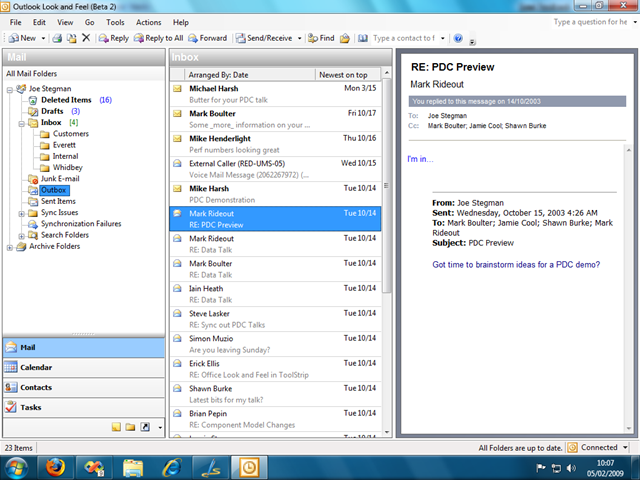
The Outlook 2003 Look and Feel sample (click on downloads on the right) has proved to be an excellent learning tool for me, and provided me with a really good example of structuring my line of business applications.

What you get is a fully working sample application

OutlookUserInterface

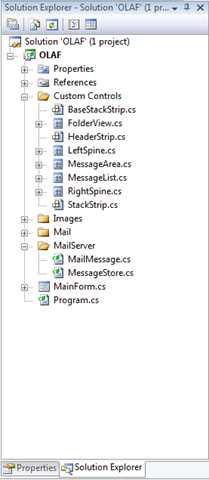
I love the way the application is structured

Project

and you can extend this to connect to a database or web service with ease.

If you use a component suite like Krypton, you easily find you have an Office 2007 application within a matter of minutes. Judging by the leaked Office 14 (or Office 2009/10) images, you can rest assured that vendors will update their controls, and you will have the most modern and de facto business application UI.

I knew what a singleton was for example, but really came to appreciate when you need to use it in a application. There is also some Win32 wizardry, converting the standard tab strip into a navigation bar for instance, and in creating the other custom controls. If you choose to use the standard Windows Forms DataGridView control, you have examples on how to interact with the control, even to repaint the columns to achieve the layout you want.

All in all I love this sample application because it is a real world application, and the sample code is very extensible.

Choosing the correct database access technology for your application


Over the last year or so, I have been developing a line of business application (LOB). The application itself is quite dull to discuss because unless you know the business problems it tries to specifically solve, then you will probably fall asleep reading about it – so I shan’t compose a disquisition here.

Problem

A core requirement of a typical LOB application is that it is multi-user, and that at any given moment, you usually have a lot of people adding, accessing or modifying data. This presents a number of challenges e.g.

  1. You need to be able to control who has access to certain modules for the application, and who can modify, delete or add data.
  2. You need to ensure that if the same record is modified by 2 users at the same time, a level of concurrency is met.
  3. You need to be able to make certain modules of the application available via the internet or web service.
  4. You need  to shape your data

Linq to SQL/Linq to Entities

This is an inexhaustive list, but will be sufficient to allow the objective of this post to be comprehensible. When I started the aforementioned application development, I elected Linq to SQL for my data access, as that [Linq] made it very easy and super fast, to develop the application.

I did however start to run into some limitations e.g. the DataContext object – central to Linq and the new Entity Framework –  needed to be in the same form for all your Create, Update, Delete or CRUD operations to work correctly. This resulted in all my business logic, presentation logic and data access logic being in the same file. Whilst this worked, the application codebase quickly became unmaintainable and very ugly. It was possible to separate this code, but this involved workarounds, and the object count in the application inflated.

DataSets

The chief problem with Linq to SQL and the Entity Framework is that you must always remain connected to the database, once a connection is broken, then change tracking for your application is lost. After a few months of trying various workarounds, I decided to go back to the tried and tested ADO.NET datasets. I have a tutorial here, which allows you to create a WCF service using datasets. The biggest strength with datasets is that they allow for a disconnected environment. What happens with datasets is that when you request data from a database, you have the tables and columns copied locally (into the dataset) which your users can then modify, and the changes then be persisted back to the underlying database at a later stage. This improves database performance, as the dataset just gets the data and breaks the connection to the database immediately, unlike the always connected Linq to SQL. In multi user applications, this is a serious concern.

Solution – SQL and Stored Procedures

  1. Stored procedures allow the database administrator to give certain users read, write or update permissions on a stored procedure. This allows for an extra layer of security for your data and solves the first problem above.
  2. Stored procedures make it easy to handle concurrency violations.
  3. Once your stored procedures are defined, you can point an ASP.NET, Silverlight or Web Service to them, negating rewriting the same logic.
  4. You can provide joined and computed columns with aggregates. Typically you need to display related tables in the same datagrid, or provide computed columns with totals for example. Stored procedures make this easy, where you would otherwise have to handle datagrid events and perform calculations on the client. This increases code bloat and decreases performance.

At the heart of datasets is SQL, and you have the option to either embed the SQL statements into the dataset, or you can create stored procedures where the statements are saved as functions in SQL Server, and you use these functions in your dataset.

I must admit that at first I found stored procedures extremely daunting, and avoided them as best I could, as they seemed overly complex. Subsequently,I was forced into learning them because my application architecture necessitated them, and have subsequently and might add pleasantly found that they are not as difficult to grasp as I thought. SQL is a pure functional language. Not “pure” in the sense of a functional language like Haskell, but it is composed purely of functions that one uses in their procedures. It is this functional syntax that most C# or Visual Basic.NET developers loathe, as it is completely different to a general purpose programming language.

In truth when you use Linq to SQL or Linq to Entities, your queries are converted to SQL anyway, so in my book, knowing SQL well makes you a better developer because

  1. You understand what the C#/VB abstraction layer is generating, why and how.
  2. You understand functional programming better, compared to the functional constructs added to C# or VB, as SQL is a pure functional language.

Digression

I was in a second hand bookstore (I like collecting books new and old), and picked up a 10 year old book on Transact-SQL. It was one of those “Teach yourself Transact-SQL in 21 days” type books I usually detest, but I am really pleased with it. The book is wonderfully written, but what is most striking is the fact that most SQL has stayed the same over the last decade or so – if not back to the IBM SEQUEL days in the mid–seventies.

Over the last decade Microsoft have introduced many flavours of ADO.NET, and most have always had their drawbacks. The reason I like SQL so much, is that is is not going away anytime soon, so knowing it well, situations you advantageously over the flavour of the month data access solutions, and one can use tried and tested technologies and methodologies, which are essential in multi-user distributed applications.

Domain Driven Design and MVC

Another discovery I have found with using stored procedures, is that you inadvertently design the application domain first, then implement the logic in your application. This is somewhat counter to the style of programming your typical developer likes, but the advantages of this type of design, far outweigh any other considerations. If you look at the MVC Framework Microsoft is pushing at present, you soon discover that stored procedures are your model (In Model View Controller), so all you have left to implement are your View and Controllers, again a default advantage to separating your data access logic from your application.

Application Changes and Updates

A key aspect of enterprise applications is reporting. In general, reporting is a moving target, and companies generally require that their reports are modified frequently to obtain the latest data to give them the competitive edge. With your data access logic tied to Linq to SQL/Entities, one would need to recompile the application, then force every terminal in the enterprise to re-install their application so they can access the latest reports. Using stored procedures, you can simply create a powershell script and run this on the server. The new reports are then available to every terminal, without a re-install, which is very expense if you have hundreds of terminals.

I hope the above has provided you with a basic explanation as to why you need to be judicious about what data access technology you choose, and that the newer technologies are not always the best in some situations.

Free Dundas ASP.NET and Windows Forms Charting Components


Microsoft purchased Dundas last year. They have now provided the charting components free (hope gauges are in the pipeline), all re-named and re-branded, but I have used their former name, because they are known industry wide as components of an exceptionally high standard. These charting components are used in all manner of business applications, including accuracy and mission critical applications monitoring activity in nuclear power stations.

MSChart

You can download the components from here. Make sure you read all the links, especially on deployment; If you build an application using the controls, your setup and deployment should add MSChart.exe installer as a pre-requisite.

It must be said that the install experience is fragmented, and  one has to add the charting component manually in the Visual Studio toolbox by browsing to the System.Windows.Forms.DataVisualisation dll, even after installing the toolbox creator.

I would also highly recommend ensuring you download and run the Visual Studio samples, because it is a very rich resource for samples, features and demonstrations, and the best way to acclimatise oneself with the new library.

Yahoo ditch WPF messenger client


In this announcement, Yahoo have nailed the lid in the Windows Presentation Foundation coffin firmly shut, and returned to native Win32 development for their Messenger Client.

I am rather disappointed about this, because I can see the huge potential of WPF, like my favourite Zurich Airport WPF demo from a couple of years back. Any business will always review the popularity of certain products, and I’m sure the download figures for the WPF messenger must be abysmal. It will inevitably take some time before the reasons why Yahoo took this decision start to percolate, but lack of popularity must be a key aspect.

What is great about programs like Skype and Windows Live Messenger (formally MSN Messenger), is that they are so simple to use, and very responsive. The average end user of said applications is always in a hurry to either send a message, or respond to one, so-much-so that really fancy graphics end up being a hindrance, especially if they are used to something quick, which WPF has not always been. For me it is a case of “just give me a text box and the ability to send my message”. It is as simple as that.

As a developer, you need to be really judicious about when to elect WPF for an application, because what you think is pretty, may actually get in the way of usability, which is the key mistake Yahoo have made. They got to too fancy with the WPF UX and forgot about simplicity.

If I was tasked with building a Messenger client (assuming the design time experience had been improved to that of windows forms at least), I would build an exact copy of the previous UI, and gradually add the features that make WPF stand out when compared with Win32. This would result in an application that appears to an end as a succession of the previous, and not having to learn something new again, to achieve the same result i.e. send and receive messages.

Microsoft have also been erroneous, principally by not eating their own dogfood. It is so important for companies to “practice what they preach”, but they too have stuck with Win32 for Windows Live Messenger, is it a surprise that everyone else has as well?