Windows Forms still ahead of WPF in LOB applications


Just reading the roadmap from DevExpress

http://www.devexpress.com/Home/Announces/Roadmap2008.xml it is pretty clear that that sales for Windows Forms are still very high. This has meant that investment in the Windows Forms platform is to continue.
The principal problem with WPF for LOB applications, is that you need to pay for a designer, and they do not come cheap. In a six month turnaround application, that can easily be £60,000, or much much more. With most LOB applications, you purchase presentation layer components from Infragistics, DevExpress, Component One etc, and your developers thrash out the necessary business logic with the Office 2007 UI or whatever UI is flavour-of-the-month.
Because Microsoft have just created the fluent interface in the Office 2007 ribbon, I cannot see a significant change to this UI in the next office version. Office is still written in C/C++ and I don’t see a re-write for the next office version. As a result most applications written in windows forms today will continue to be relevant. Look at Visual Studio, the toolbar components are pretty much the same as Office 2003, even down to the icons that have not been changed for years. Visual Studio is a tool, and most LOB applications are tools.

Differentiated UI is a big risk in LOB applications, because you usually have a workforce with varying IT skills. You can safely assume that most users are familiar with Outlook, so creating an application with a similar look and feel lessens the learning curve. WPF opens up new doors, and for me in LOB applications, only the subtle use of it with nice 3D charting or reports is the way to go. If you move to far away from the familiar, you will end up with users struggling to learn the application. The net resultant is increased training costs for the application, for no real business value.

Finally, An example of a Multi tier architecture for Linq to Sql


Update 2/6/2008:

The original post for this is available  beneath, but the link to the original article has been removed which turns this post to a pointless rant because you cannot reference the article. Luckily Beth Massi has a very good n’tier Linq example.

Original

Anyone that is aware of my posts knows that I do whinge about the lacklustre implementability of Linq in real world scenarios. I have battled with this for some time now.

Microsoft’s response a few months back was that they were waiting to see how their customers would ‘conjure up’ a method of doing this.
I found this attitude dissatisfactory, because if you’re trying to negate the impedance mismatch between ‘objects’ and ‘data’, the ubiquitous scenario is n-tier. You cannot introduce such a feature (Linq), and not have examples of it being implemented n-tier.
I have just come across an example of implementing Linq to Sql on MSDN. The link is available here.

I have finished testing this and quite frankly, I’m very disappointed. This is not easier than datasets, but more complex, for absolutely no ROI for understanding the raised abstraction.
Validation is pain, even more painful is moving this to winforms/wpf applications, that do not have the object data source.

I keep returning to Linq because of all the noise Microsoft made. Indisputably, one is more expressive when composing queries, but that is just one small part in creating an n-tier app.

Nah, back to datasets for me, and quick. Unless a miracle happens.

Licensing and protecting your software


One of the first commercial mistakes I made, was to develop an application over a period of 4 months (it wasn’t that big an app), and not have any protection on it. The client was, emollient and friendly. He stated that his prime requirement, was he have a working demo. In my naiveté I supplied him with a fully working copy. It will come as no surprise that it was the last I ever heard from him. Trust no-one!

There is a myriad of choice when it comes to approaching this subject, but something that may appeal to you is Microsoft Software Licensing and Protection. There is an introductory video and the option to trial the utility, very useful indeed!

Beware of 3rd Party RAD controls


Recently I have been involved in a discussion about 3’rd party rapid application development tools. The users wanted to know about Telerik controls.

Telerik are very new to the Windows Forms game as they have always been web giants. For a recent application, I needed a grid that displays progress bars/department progress as an order goes through various departments. Only problem is with all the main vendors they have heavily modified their grids to cater for 10 000 different situations. The net result, is that you have 10 000 options to learn, to fully utilise their grid. Personally I found that the DevExpess grid for instance, is optimised for databinding, and does not have an unbound mode (after a month of fiddling about with it). For all the others I needed to owner draw the progress bars, which I may as well have done with the standard datagrid view. I have now done this, and optimsed it though, getting rid of the flicker when painting.
The feature I do miss is grouping, and this is what most people that buy RAD components go for, i.e. getting their app to look like Outlook. I will be modifying this grid and adding a Linq data source. All in all, it will take me less time to do this, than learn third party vendor solutions, and improve my development skills. You automatically, in fact exponentially raise the complexity level when you use third party suites, when a lot of the time, not being lazy and working a little harder results in attaining what you wanted without the huge complexity overhead.

2 years down the line, you have to maintain the application (I want to move to WPF), you then need developers that are trained in whatever suite you used and that really does add to the costs. The only third party thing I will purchase will be a calendar/scheduler because I really haven’t time to update the open source ones and I need something that looks good.
You can say what you want about Krypton, but this I have found to be highly customisable with things like button specs. It is far, far, far more flexible than some of the main vendors, and I have tried them all.

One of the main complaints I receive from customers, is when using solutions like RedPraire. The main complaint is, that you are tied into their specific implementation for your business, i.e. you work around the system and not the other way around. This is no different with software from 3rd party vendors. Your are tied to their specific implementation of for example how a datagrid should work. Try 2 different vendors and get 2 completely different grids and abstractions. Just like windows forms the drag and drop experience is quick (dragging components onto the form), then the real challenge begins in learning the various abstractions.

Use third party components, if you have a substantial budget, and have 4-5 years programming experience. Without that, you will never fully utilise what’s on offer, and never know how .NET really works, because you are shielded from using delegates and interfaces.

Linq to SQL Compact Edition (CE)


I got asked about doing this recently, and needed somewhere to point the individual to.

Presently, unfortunately, Linq to SQL Compact Edition is unsupported. Luckily though, it is quite easy to still perform Linq queries against SQL compact using the command line utility SqlMetal. SQL Compact Edition is very handy for single user applications or demos where you want to retain a very small application imprint, but not lose functionality. All that is required is that you have the object relational mapping (ORM) file that contains the Linq to SQL classes. This in Visual Studio is the .dbml file that is generated when you elect LinqToSQLClasses in the data menu.

Open up the Visual Studio command prompt by going to

You should have the following;

C:\Program Files\Microsoft Visual Studio 9.0\VC>

Enter ‘SqlMetal’ in the command prompt and take time to explore all the options available to you.

I simply want to create a .dbml file from my database which I have in my c:\ drive. You will want to point this to wherever your .sdf file is.

Enter the following path into the Visual Studio command prompt

SqlMetal /dbml:c:\Users\MyName\Documents\Northwind.dbml "C:\Users\MyName\Documents\Visual Studio 2008\Projects\Windows Forms\Code\Northwind\Northwind Database\Northwind.sdf"

Where the above is the format; SqlMetal /dbml:northwind.dbml northwind.sdf

Note that in vista you must specify the path through the ‘Users folder’. Failure to do this will result in a file access error.

As you can see my .dbml file was copied to my documents folder. I then copied this into my project. .To access the file I reference it in the constructor of the form thus;

using System;
using System.Collections.Generic;
using System.ComponentModel;
using System.Data;
using System.Drawing;
using System.Linq;
using System.Text;
using System.Windows.Forms;

namespace WindowsFormsApplication1
{
    public partial class Form1 : Form
    {
        NorthwindDataContext northwindDataContext;

        public Form1()
        {
            InitializeComponent();

            this.northwindDataContext = new NorthwindDataContext(Properties.Settings.Default.NorthwindConnectionString);
        }
    }
}

The Death of Windows Forms?


I have been engineering software for about 4 years now. For the most part I have used Windows Forms and ASP.NET (the latter being my focus hitherto).

Presently, I have a little sideline project, that may or may not be remunerative. This ‘sideline’ will be a smart client. The principal requirements for this project are two fold.

  1. A Microsoft Outlook type interface, with a grid control that has grouping.
  2. A grid control that is similar to uTorrent, Free Download Manager or FlashGet. This grid will have an array or progress bars.

Because this project, which I’ll code name “Chronicle” is not commissioned, its is best met with free tools. At present it is in three incarnations.

  1. Using free components from http://www.componentfactory.com/. I have used just the free toolkit from here
  2. Using the exceptionally good components from Devexpress
  3. Using Windows Presentation Foundation

So far the need for the project to be free has ruled out Devexpress components because they are

  1. Very expensive
  2. Add additional layers of complexity to the project. Just try to get you head around the Xtragrid, their version of the data grid view. This is not a pleasant experience, and comes at the expense of a few months to master.

The two left, are the Windows forms application with Krypton, or WPF.

I was asked this question in for forum a while ago;

What drives change in your organisation? Technology or Business requirement?

I have since struggled to answer it. Business requirement tells me that winforms is the way to go, but WPF makes things so much easier. Trying to embed controls like progress bars into data grid views requires some tricky code.

To get a faithful Outlook UI in winforms, there is the Joe Stegman sample titled Building Outlook UI in 100 lines of code with Winforms (link to the video on channel 9).

This is probably the canonical example for doing this type of thing in winforms. Only problem is that there is no grouping in the datagrid, that has been heavily modified. In WPF you just set a few properties to a Listview control.

To get a faithful Outlook UI in WPF, there is this example. Both examples lack the WOW and exact finish that Devexpress or Infragistics components have. But they teach you the principles, you can iron out your business logic, then either be creative or purchase presentation layer components.

In WPF you can add any control into any control, a huge obstacle to my project in windows forms.

In WPF to enable spell checking you do this;

<TextBox SpellCheck.IsEnabled=”True” />

In windows forms you either go with Netspell (4 years old) or this, which does not work on my PC because I’m using office 12. More tweaks required there then.

I put this question to some of the finest minds around here.

Calling another forms method/function


Frequently when writing winforms applications, one needs to call a method/function in another form. This is very handy for instance, if you want to refresh the other form after changing values in a database.

After trying to solve this using delegates, I came across this eloquent solution.

Create two Winforms, F1 and F2 with a button in each.

In Form 1

using System;
using System.Windows.Forms;

namespace WindowsFormsApplication1
{
    public partial class Form1 : Form
    {
        public Form1()
        {
            InitializeComponent();
        }

        public void MyMessage()
        {
            MessageBox.Show("Hello from Form 1");
        }

        private void button1_Click(object sender, EventArgs e)
        {
            Form2 form2 = new Form2(this);
            form2.ShowDialog(this);
        }
    }
}

In Form 2

using System;
using System.Windows.Forms;

namespace WindowsFormsApplication1
{
    public partial class Form2 : Form
    {
        Form1 form1;

        public Form2(Form1 form1)
        {
            InitializeComponent();
            this.form1 = form1;
        }

        private void button1_Click(object sender, EventArgs e)
        {
            this.form1.MyMessage();
        }
    }
}


The instance of form 1 is passed to the second form using the this keyword. Ultimately what is passed is just a reference (pointer) to the form object.

User Control Closing Event


It is a common requirement when using User Controls to detect that the Parent Form or main form is closing.

Presently, I am working on a distributed smart client application that is full of user controls. Most, if not all of these user controls will be getting data by calling a Windows Communication Foundation service (A good tutorial on WCF is available in an earlier blog post here).

When you instantiate a Service Reference client object, it is imperative that you call client.Close() to free up any resources when the control is closed. As there is no FormClosing event in a winforms UserControl, you will need to override the ParentForm.FormClosing event. In this example I have a windows form with a user control on it. When you close the form the event in the user control is raised.

Note: Visual basic example is below

C#

using System.Windows.Forms;


namespace UserControlClosingEvent

{

    public partial class UserControl1 : UserControl

    {

        public UserControl1()

        {

            InitializeComponent();

        }


        protected override void OnCreateControl()

        {

            base.OnCreateControl();

            this.ParentForm.FormClosing += new FormClosingEventHandler(ParentForm_FormClosing);

        }


        void ParentForm_FormClosing(object sender, FormClosingEventArgs e)

        {

            if (MessageBox.Show("Would you like to close the parent form?", "Close parent form?",

                MessageBoxButtons.YesNo, MessageBoxIcon.Question) == DialogResult.No)

            {

                e.Cancel = true;

            }

        }

    }

}


Visual Basic

Public Class UserControl1


    Protected Overloads Overrides Sub OnCreateControl()

        MyBase.OnCreateControl()

        AddHandler Me.ParentForm.FormClosing, AddressOf ParentForm_FormClosing

    End Sub


    Private Sub ParentForm_FormClosing(ByVal sender As Object, ByVal e As FormClosingEventArgs)

        If MessageBox.Show("Would you like to close the parent form?", "Close parent form?", _

                           MessageBoxButtons.YesNo, MessageBoxIcon.Question) = DialogResult.No Then

            e.Cancel = True

        End If

    End Sub


End Class

You can then call the client.Close() (or whatever action you desire) instead of MessageBox.Show() in ParentForm_FormClosing event

Windows Communication Foundation Support in Visual Studio 2008


Recently I was having major problems designing a smart client application because the architecture necessitated a n-tier (or multi tier) paradigm. This "Architecture" was non-negotiable insofar as the smart client being for a relatively successful business. The advantages of this type of architecture are well documented so feel free to Google search on the subject.

The following tutorial will take you through the steps required to create an n-tier application using Visual Studio 2008.

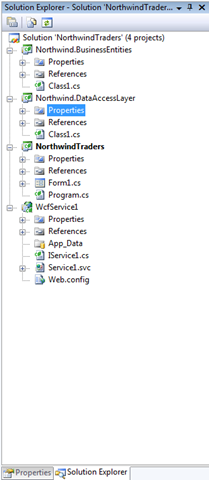
  1. Create a new windows application called NorthwindTraders
  2. In the same solution, add a new class library called Northwind.DataAccessLayer (Delete the Class1.cs file in this project)
  3. Add another class library called Northwind.BusinessEntities (Delete the Class1.cs file in this project)
  4. Add a WCF Service Application called WcfService1 (the default). Make sure you choose the WCF service under the web options shown below

Service

Your solution explorer should have the following four projects.

SolutionExplorer

In the DataAccessLayer project add a DataSet. To do this, make sure the DataAccessLayer project is selected in Solution Explorer, and from the main menu choose "add new data source". Make sure Database is selected and click “Next”.

Note:  I’m assuming you have downloaded and installed the Northwind database, if not you can get the ubiquitous database here.
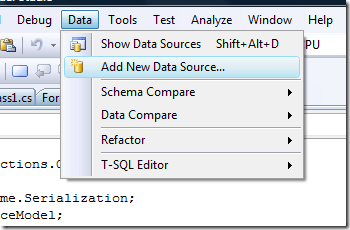
AddNewDataSource

If you don’t already have a connection to Northwind, click the “New Connection” button and select the SQL database file

DatabaseFile

You should now be able to browse to the database, and test to make sure the connection is working

BrowsetoDB

Click on “Next”, if you get the following dialog, saying yes makes a copy of the Northwind Database to your project. I usually say  no because you ens up with dozens if not hundreds of copies of the same database in your Visual Studio Projects folders, this was you always use the same database in all your projects.
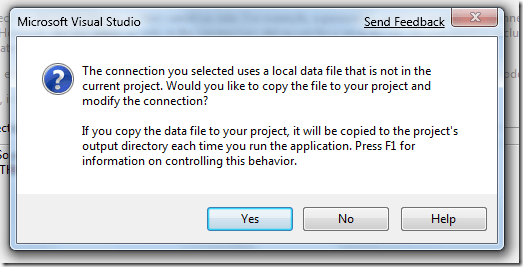
CopyDBMessage

Save the connection as “NorthwindConnectionString” and Click “Next”. Choose the “Customers” and “Orders” tables, and Change the name of the DataSet to “CustomersDataSet” and click on “Finish”.

CustomersDataSet

”Choose the default database option and click next. Select the Northwind database and then choose the customers and orders tables. Change the name of the DataSet to "CustomerOrdersDataSet" and click finish.

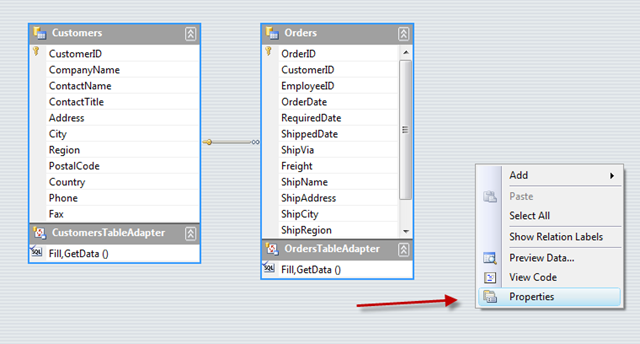
Double click the “CustomersDataSet” in Solution Explorer and right click on the dataset and select properties

DataSetProperties

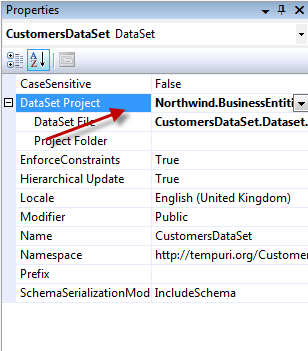
In the properties pane you can now choose the DataSet project for the data access layer. This is a new feature in Visual Studio 2008 that allows you to separate you data access logic and your business logic into two projects, which was a real pain point in Visual Studio 2005. In this case choose the Northwind.BusinessEntities project and make sure you click “Save”.

ChooseDataBaseProject

If you double click the orders table in the DataSet designer, you should be taken into the business entities project, where you can add some validation logic.

namespace Northwind.BusinessEntities {


    public partial class CustomersDataSet {

        partial class OrdersDataTable

        {

            public override void EndInit()

            {

                base.EndInit();

                this.ColumnChanged += new System.Data.DataColumnChangeEventHandler(OrdersDataTable_ColumnChanged);

            }


            void OrdersDataTable_ColumnChanged(object sender, System.Data.DataColumnChangeEventArgs e)

            {

                if (e.Column.ColumnName == this.OrderDateColumn.ColumnName

                    || e.Column.ColumnName == this.ShippedDateColumn.ColumnName)

                {

                    VaidateDates((OrdersRow)e.Row);

                }

            }

            /// <summary>

            /// Simple validation to ensure that the date an order is shipped is not

            /// before it has been ordered

            /// </summary>

            /// <param name="ordersRow"></param>

            private void VaidateDates(OrdersRow ordersRow)

            {

                if (ordersRow.OrderDate > ordersRow.ShippedDate)

                {

                    ordersRow.SetColumnError(this.OrderDateColumn, "Cannot ship before it’s been ordered");

                    ordersRow.SetColumnError(this.ShippedDateColumn, "Cannot ship before it’s been ordered");

                }

                else

                {

                    ordersRow.SetColumnError(this.OrderDateColumn, "");

                    ordersRow.SetColumnError(this.ShippedDateColumn, "");

                }

            }

        }

    }

}

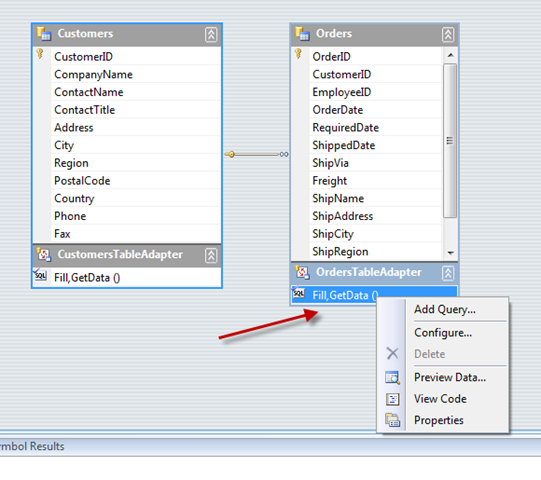
We can now complete the setup by adding a class into the data access layer called the NorthwindDataManager that connects to the database, and returns the tables. The NorthwindManager will typically contain all the queries that you create. If you need to know how to create queries you can have a look at this article, or do some research. You typically you change the query to GetOrders and not GetData, but some knowledge of this is assumed.
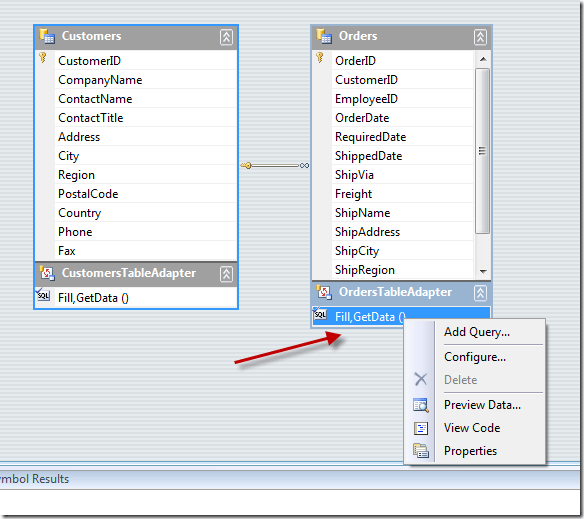
Queries

This is the code that returns a DataTable in the NorthwindDataManager. Make sure you include the Using statements at the top


using System;

using System.Collections.Generic;

using System.Linq;

using Northwind.BusinessEntities;

using System.Text;

using Northwind.DataAccessLayer.CustomersDataSetTableAdapters;


namespace Northwind.DataAccessLayer

{

    /// <summary>

    /// Typically this class would not return all the data, but specific queries related to a table.

    /// For the sake of brevity, we will return all the orders in the northwind database. Also try

    /// change the GetData() to GetOrders() in the OrdersTableAdapter by modifying the query in the

    /// DataSetDesigner. Knowledge of doing this is assumed.

    /// </summary>

    public class NorthwindDataManager

    {

        public static CustomersDataSet.OrdersDataTable GetOrders()

        {

            OrdersTableAdapter ordersAdapter = new OrdersTableAdapter();

            return ordersAdapter.GetData();

        }

    }


}

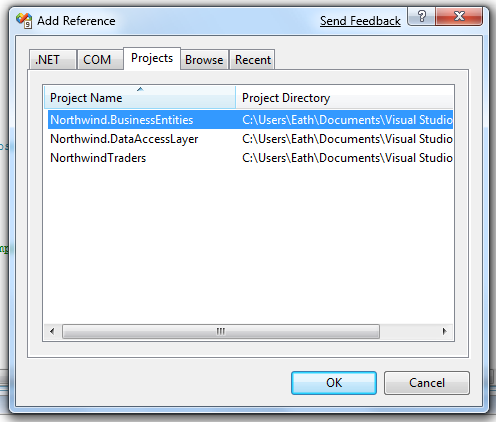
Now we will configure the service. Select the WCF service project, right click the “References” node in Solution Explorer, and go “Add References.” choose the projects tab at the top and add the DataAccessLayer and BusinessEntities projects.

AddReferences

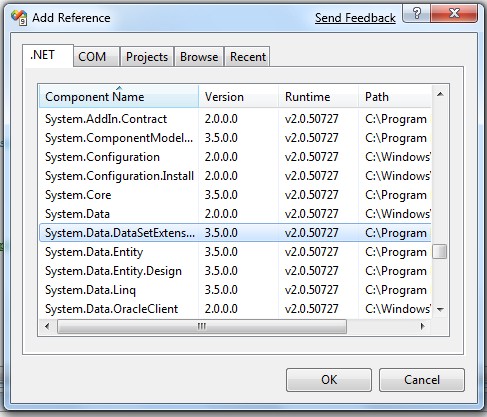
You also need to add a reference to System.Data.DataSetExtensions so add a reference as above, but this time choose the .NET tab
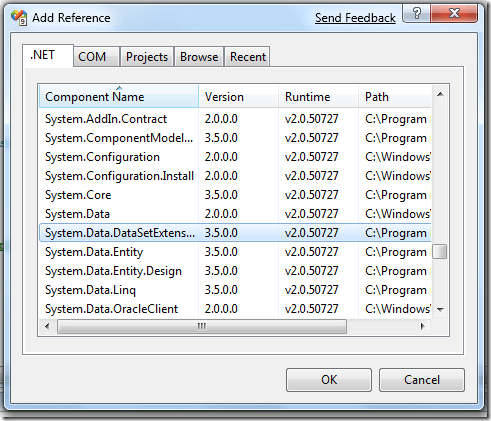
DataSetExtensions

So your solution explorer should look like this

References

In the IService interface file, remove the default entries and add a contract called GetOrders (not forgetting the namespaces at the top)

using System;

using System.Collections.Generic;

using System.Linq;

using System.Runtime.Serialization;

using System.ServiceModel;

using System.Text;

using Northwind.BusinessEntities;


namespace WcfService1

{

    // NOTE: If you change the interface name "IService1" here, you must also update the reference to "IService1" in Web.config.

    [ServiceContract]

    public interface IService1

    {

        [OperationContract]

        CustomersDataSet.OrdersDataTable GetOrders();

    }

}

In the Service1.scv file remove the default data and implement the IServive1 interface. A quick shortcut to do this is to right click the IService1 in Visual Studio shown below (this can save quite a lot of typing when setting up big service layers)

ImplementInterface

Add the following code (again note the namespaces above)

using System;

using System.Collections.Generic;

using System.Linq;

using System.Runtime.Serialization;

using System.ServiceModel;

using System.Text;

using Northwind.DataAccessLayer;

using Northwind.BusinessEntities;


namespace WcfService1

{

    // NOTE: If you change the class name "Service1" here, you must also update the reference to "Service1" in Web.config and in the associated .svc file.

    public class Service1 : IService1

    {


        #region IService1 Members


        public CustomersDataSet.OrdersDataTable GetOrders()

        {

            return NorthwindDataManager.GetOrders();

        }


        #endregion


    }

}

To complete the tutorial go to the NorthwindTraders project, which typically is your client application and make sure you add a reference to the business entities project. This is important because it allows proxy reuse (another VS 2008 Key feature). You should also see here that at no stage is the data access component ever available or referenced on the client. Make sure you build the entire Solution now by clicking F5.

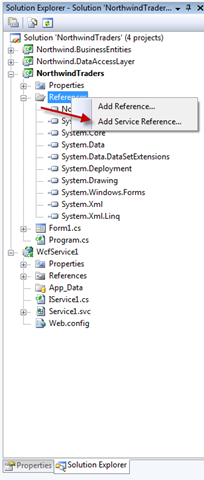
Right click the references node and add a service reference this time.

AddServiceReference

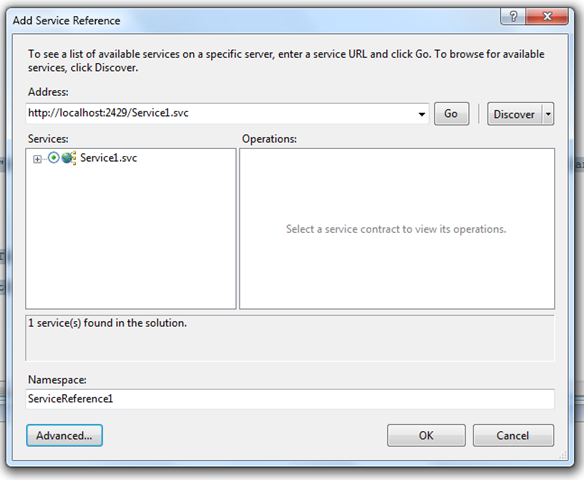
Click the discover button and wait till the reference is located and then click OK

ServiceReference

Note: A word of warning is that if you use third party software libraries, than you do not want their libraries included here. Be sure to click the advanced button, and choose “Reuse types in specified referenced assemblies” and omit them. Failure to do this may result in some rather nasty Visual Studio crashes.

In the app.config, as a security precaution, the client configuration we generate has a default MaxRecievedMessageSize value of 65536, meaning that an exception will be thrown at runtime if the service sends more data to the client than it expects. Since we know we will be passing large DataSets over the wire, please open up the app.config and set the element <bindings>\<wsHttpBinding>\<binding>’s maxReceivedMessageSize attribute to 5000000. Or, if you feel uncomfortable editing your service’s configuration by hand, you can open up the Microsoft Service Configuration Editor available under Visual Studio’s Tools menu.

<?xml version="1.0" encoding="utf-8" ?>

<configuration>

    <system.serviceModel>

        <bindings>

            <wsHttpBinding>

                <binding name="WSHttpBinding_IService1" closeTimeout="00:01:00"

                    openTimeout="00:01:00" receiveTimeout="00:10:00" sendTimeout="00:01:00"

                    bypassProxyOnLocal="false" transactionFlow="false" hostNameComparisonMode="StrongWildcard"

                    maxBufferPoolSize="524288" maxReceivedMessageSize="5000000"

                    messageEncoding="Text" textEncoding="utf-8" useDefaultWebProxy="true"

                    allowCookies="false">

                    <readerQuotas maxDepth="32" maxStringContentLength="8192" maxArrayLength="16384"

                        maxBytesPerRead="4096" maxNameTableCharCount="16384" />

                    <reliableSession ordered="true" inactivityTimeout="00:10:00"

                        enabled="false" />

                    <security mode="Message">

                        <transport clientCredentialType="Windows" proxyCredentialType="None"

                            realm="" />

                        <message clientCredentialType="Windows" negotiateServiceCredential="true"

                            algorithmSuite="Default" establishSecurityContext="true" />

                    </security>

                </binding>

            </wsHttpBinding>

        </bindings>

        <client>

            <endpoint address="http://localhost:2429/Service1.svc" binding="wsHttpBinding"

                bindingConfiguration="WSHttpBinding_IService1" contract="ServiceReference1.IService1"

                name="WSHttpBinding_IService1">

                <identity>

                    <dns value="localhost" />

                </identity>

            </endpoint>

        </client>

    </system.serviceModel>

</configuration>

Now that our service has been added and configured correctly, let’s do some data binding to the data tables returned from our service. Open up the Data Sources window and drag and drop the Orders table onto Form1.
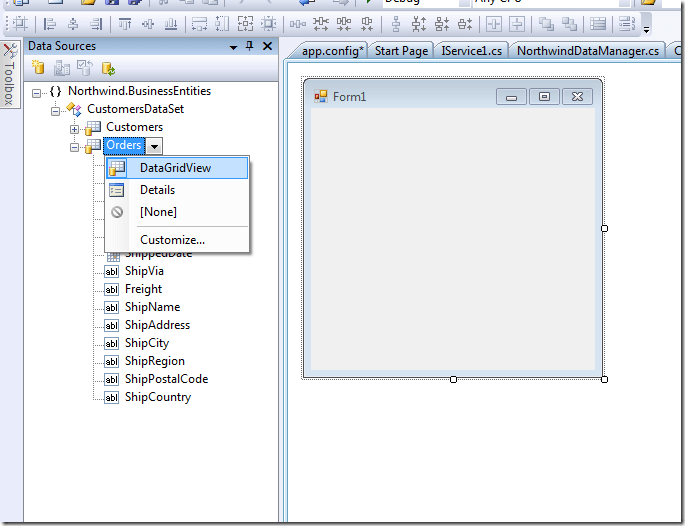
DragData

Finally, the last thing we need to do is add code to Form1’s OnLoad event to get data from our WCF service.

using System;

using System.Collections.Generic;

using System.ComponentModel;

using System.Data;

using System.Drawing;

using System.Linq;

using System.Text;

using System.Windows.Forms;


namespace NorthwindTraders

{

    public partial class Form1 : Form

    {       

        private ServiceReference1.Service1Client serviceClient;

        public Form1()

        {

            InitializeComponent();

            this.serviceClient = new NorthwindTraders.ServiceReference1.Service1Client();

        }


        private void Form1_Load(object sender, EventArgs e)

        {

          this.customersDataSet.Merge(this.serviceClient.GetOrders());

        }


        // Being a good citizen, always close a service connection

        private void Form1_FormClosing(object sender, FormClosingEventArgs e)

        {

            this.serviceClient.Close();

        }

    }

}

As you can see when the form is loaded and the dates changed, the validation occurs in a library separate from the client.

validation

Progress Bar Delegate


When I wrote my first commercial application – a program that split XML files – I first created a class called SplitXML that split the file, but I needed to update a Progress Bar control with how much of the file had been split on the form that instantiated the SplitXML class. The following is a generic example of how you achieve this using delegates.

Note: This tutorial is available in both C# and Visual Basic

First create a DoWork Class

Visual Basic

Public Delegate Sub ProgressBarHandler(ByVal min As Integer, ByVal max As Integer, ByVal value As Integer)


Public Class DoWork


    Public Event ReportProgress As ProgressBarHandler


    Public Sub DoTheWork()


        Dim min As Integer = 0

        Dim max As Integer = 10


        For value As Integer = 0 To max – 1


            ‘ Simulates a long running process like splitting a file,

            ‘ or getting data from a web service call, by stopping for

            ‘ 1 second (1000 milliseconds) in the loop


            RaiseEvent ReportProgress(min, max, value)

            System.Threading.Thread.Sleep(1000)

        Next


    End Sub

End Class

C#

using System;

using System.Collections.Generic;

using System.Linq;

using System.Text;


namespace ProgressBarDelegate

{

    public delegate void ProgressBarHandler(int min, int max, int value);


    public class DoWork

    {

        public event ProgressBarHandler ReportProgress;


        public void DoTheWork()

        {

            int min = 0;

            int max = 10;


            for (int value = 0; value < max; value++)

            {

                // Simulates a long running process like splitting a file,

                // or getting data from a web service call, by stopping for

                // 1 second (1000 milliseconds) in the loop


                ReportProgress(min, max, value);

                System.Threading.Thread.Sleep(1000);


            }

        }


    }

}

In the MainForm drag a button and a progress bar on the form

Form1

Click the button to add an event handler, and add the following code

Visual Basic

Public Class Form1


    Private Sub button1_Click(ByVal sender As Object, ByVal e As EventArgs) Handles button1.Click

        Dim doWork As New DoWork()

        AddHandler doWork.ReportProgress, AddressOf doWork_ProgressBarProgress

        doWork.DoTheWork()

    End Sub


    Private Sub doWork_ProgressBarProgress(ByVal min As Integer, ByVal max As Integer, ByVal value As Integer)

        progressBar1.Minimum = min

        progressBar1.Maximum = max

        progressBar1.Value = value + 1


    End Sub

End Class

C#

using System;

using System.Windows.Forms;


namespace ProgressBarDelegate

{

    public partial class Form1 : Form

    {

        public Form1()

        {

            InitializeComponent();

        }


        private void button1_Click(object sender, EventArgs e)

        {

            DoWork doWork = new DoWork();

            doWork.ReportProgress += new ProgressBarHandler(doWork_ProgressBarProgress);

            doWork.DoTheWork();

        }


        void doWork_ProgressBarProgress(int min, int max, int value)

        {

            progressBar1.Minimum = min;

            progressBar1.Maximum = max;

            progressBar1.Value = value + 1;


        }

    }

}

This is quite a common requirement when programming i.e. letting an Form know the progress of a method in an instantiated class. Subsequent need of this functionality has resulted in my implementing this the correct "Windows" way:

Sometimes you need to pass more than one value or reference in the delegate. As a best practice the signature of a delegate is always;

Visual Basic

Public Delegate Sub SomeHandler(ByVal sender As Object, ByVal e As SomeEventArgs)


C#

 public delegate void SomeHandler(object sender, SomeEventArgs e);

This means that if you need to pass more than one value (like the first example), this best practice is not adhered to. There is an eloquent way to do this though. I have two classes in the example.

First create a custom EventArgs class that takes two values (you can modify this to take any number of parameters your require)

Visual Basic

   Public Class ProgressBarProgressEventArgs

        Inherits System.EventArgs

        Private m_maximum As Integer

        Private m_stage As Integer


        Public Property Maximum() As Integer

            Get

                Return m_maximum

            End Get

            Set(ByVal value As Integer)

                m_maximum = value

            End Set

        End Property

        Public Property Stage() As Integer

            Get

                Return m_stage

            End Get

            Set(ByVal value As Integer)

                m_stage = value

            End Set

        End Property

    End Class


C#

 public class ProgressBarProgressEventArgs : System.EventArgs

    {

        private int maximum;

        private int stage;


        public int Maximum

        {

            get { return maximum; }

            set { maximum = value; }

        }

        public int Stage

        {

            get { return stage; }

            set { stage = value; }

        }     

    }

Secondly create the DoWork class where the actual works takes place. This could be the splitting of an XML file, a production line in a factory or whatever.

Visual Basic

    Public Delegate Sub ProgressBarHandler(ByVal sender As Object, ByVal e As ProgressBarProgressEventArgs)


    Public Class DoWork

        Public Event ReportProgress As ProgressBarHandler


        Public Sub DoTheWork()

            For stage As Integer = 1 To 5


                OnStageCompleted(stage, 5)

                System.Threading.Thread.Sleep(1000)

            Next

        End Sub


        Private Sub OnStageCompleted(ByVal stage As Integer, ByVal max As Integer)

            Dim args As New ProgressBarProgressEventArgs()

            args.Stage = stage

            args.Maximum = max

        RaiseEvent ReportProgress(Me, args)

        End Sub

    End Class


C#

 public delegate void ProgressBarHandler(object sender, ProgressBarProgressEventArgs e);


    public class DoWork

    {

        public event ProgressBarHandler ReportProgress;


        public void DoTheWork()

        {

            for (int stage = 1; stage < 6; stage++)

            {


                OnStageCompleted(stage, 5);

                System.Threading.Thread.Sleep(1000);

            }

        }


        private void OnStageCompleted(int stage, int max)

        {

            ProgressBarProgressEventArgs args = new ProgressBarProgressEventArgs();

            args.Stage = stage;

            args.Maximum = max;

            ReportProgress(this, args);

        }


    }

Finally in the Mainform

Visual Basic

Public Class Form1


    Private Sub button1_Click(ByVal sender As Object, ByVal e As EventArgs) Handles button1.Click

        Dim doWork As New DoWork()

        AddHandler doWork.ReportProgress, AddressOf doWork_ReportProgress

        doWork.DoTheWork()

    End Sub


    Private Sub doWork_ReportProgress(ByVal sender As Object, ByVal e As ProgressBarProgressEventArgs)

        progressBar1.Maximum = e.Maximum

        progressBar1.Value = e.Stage

    End Sub


End Class

C#

using System;

using System.Windows.Forms;


namespace ProgressBarDelegate

{

    public partial class Form1 : Form

    {

        public Form1()

        {

            InitializeComponent();

        }


        private void button1_Click(object sender, EventArgs e)

        {

            DoWork doWork = new DoWork();

            doWork.ReportProgress += new ProgressBarHandler(doWork_ReportProgress);

            doWork.DoTheWork();

        }


        void doWork_ReportProgress(object sender, ProgressBarProgressEventArgs e)

        {

            progressBar1.Maximum = e.Maximum;

            progressBar1.Value = e.Stage;

        }


    }

}

Try debugging this and you should see that this is much more "sensible", although the first example is much easier to understand. This is the preferred way of declaring delegates.